Elementor makes building WordPress websites easier. You can create professional layouts, customize almost every section, and manage designs without writing everything from scratch.
But there is one problem I often see with Elementor websites. They look great, but their performance tells a different story.
Slow loading, oversized images, unnecessary widgets, excessive scripts, and poorly configured hosting can gradually affect the entire website.
After working with WordPress for years, I’ve learned that Elementor itself isn’t always the problem. Most performance issues come from how the website is built, configured, and maintained.
My approach to Elementor performance optimization is simple. Build efficiently from the beginning, avoid unnecessary complexity, and optimize based on actual performance data.
Here’s how I approach it.
Why Elementor Websites Become Slow
Elementor is a visual page builder, which means it generates the HTML, CSS, and JavaScript needed to display your designs.
The more complicated the layout becomes, the more resources the browser may need to process.
Some common reasons Elementor websites become slow include:
-
Excessive containers and nested elements.
-
Too many third-party Elementor add-ons.
-
Large images and background videos.
-
Unoptimized fonts and icons.
-
Poor hosting and server response times.
-
Multiple plugins loading unnecessary scripts.
-
Missing or incorrectly configured caching.
The important thing is understanding which of these issues actually affects your website.
Installing another optimization plugin without identifying the problem rarely solves everything.
1. I Start With a Proper Performance Audit
Before changing anything, I check how the website currently performs.
I use tools such as
and GTmetrix to understand loading behavior, identify heavy resources, and find potential bottlenecks.
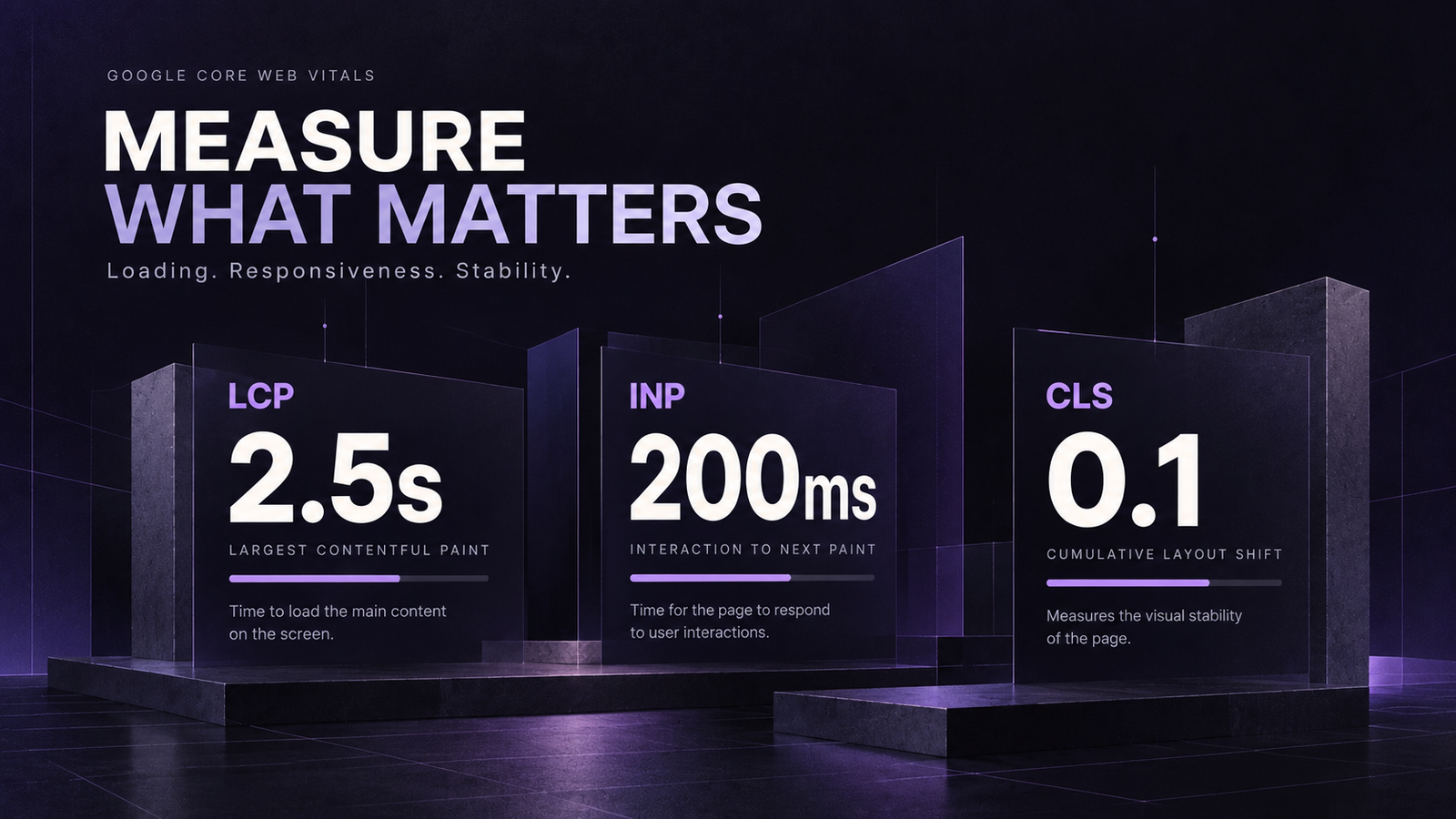
I pay particular attention to Google’s Core Web Vitals.
| Metric | Good performance |
|---|---|
| Largest Contentful Paint (LCP) |
2.5 seconds or less |
| Interaction to Next Paint (INP) |
200 milliseconds or less |
| Cumulative Layout Shift (CLS) |
0.1 or less |
These metrics measure loading speed, responsiveness, and visual stability.
I also check mobile performance separately because a website that feels fast on a desktop can behave very differently on a mobile connection.
My goal isn’t simply achieving a perfect PageSpeed score. It’s making the actual browsing experience faster and more reliable.
2. I Keep Elementor Layouts Clean
One of the most important parts of Elementor speed optimization happens during the design process.
It’s easy to create unnecessary complexity by adding containers inside containers, especially when trying to achieve precise layouts.
Instead, I prefer using Elementor’s Flexbox Containers and Grid Containers where appropriate.

Elementor’s container-based approach can reduce unnecessary HTML elements compared with older section and column structures.
My general approach is to:
-
Use fewer nested containers.
-
Avoid unnecessary spacer widgets.
-
Use padding, margins, and alignment properly.
-
Reuse global styles instead of repeatedly defining them.
-
Remove unused widgets and hidden elements.
A cleaner layout is easier to maintain and gives the browser less unnecessary work.
3. I Optimize Images Before Uploading Them
Images are often responsible for a significant portion of a page’s loading weight.
A beautifully designed hero section can become a performance problem when it contains an unnecessarily large background image.
I prefer optimizing images before uploading them to WordPress.
My usual process includes resizing images to their intended display dimensions, compressing them, and using modern formats such as WebP or AVIF where supported.
I also make sure the website serves appropriately sized images across different screen sizes.
Be Careful With Lazy Loading
Lazy loading is useful for images that appear further down the page.
However, the main hero image should generally load immediately because it may be the Largest Contentful Paint element.
Elementor’s Optimized Image Loading feature helps prioritize important images and applies lazy loading where appropriate.
I also avoid unnecessarily heavy background videos, particularly on mobile devices.
4. I Use Elementor’s Built-In Performance Features
Elementor has introduced several performance improvements that are worth checking before adding more plugins.
Depending on the installed version, these settings can be found under Elementor’s Performance and Features settings.
Some important options include:
Optimized Image Loading: Prioritizes important images and improves loading behavior.
Lazy Load Background Images: Delays background images that are not immediately needed.
Improved Asset Loading: Reduces unnecessary JavaScript by loading supported functionality only when required.
Inline Font Icons: Uses inline SVG icons to reduce dependency on additional icon libraries.
These features help reduce unnecessary resources and improve loading efficiency.
I review the available settings and test their impact rather than enabling everything without checking compatibility.
5. I Avoid Installing Too Many Elementor Add-Ons
Third-party add-ons can extend Elementor’s functionality, but they can also introduce additional CSS, JavaScript, and dependencies.
I’ve always preferred keeping the plugin stack as lean as possible.
Before installing an add-on, I ask whether the same functionality can be achieved using Elementor’s existing widgets or a small amount of custom code.
For example, installing an entire widget collection just to create one simple design element may not be necessary.
I also review inactive plugins and remove extensions that are no longer required.
The fewer unnecessary dependencies a website has, the easier it becomes to maintain and troubleshoot.
6. I Configure Caching Properly
Caching is another important part of WordPress Elementor performance.
Without proper caching, WordPress may need to repeatedly process requests that could otherwise be served more efficiently.
Depending on the hosting environment, I configure:
-
Page caching for public pages.
-
Browser caching for static resources.
-
Object caching where supported.
-
CDN delivery when appropriate.
Elementor also offers Element Caching, which can store the rendered HTML of suitable static elements rather than generating it repeatedly.
However, dynamic content requires special attention. Elementor advises against applying element caching to elements containing personalized or dynamic information.
I always test forms, logged-in experiences, WooCommerce functionality, and other dynamic sections after making caching changes.
7. I Optimize Fonts, Icons, and Scripts
Typography and visual effects are important parts of website design, but they shouldn’t create unnecessary loading overhead.
I generally limit font families and weights, use modern font formats, and avoid loading multiple icon libraries.
Where appropriate, I also review third-party scripts such as chat widgets, tracking tools, embedded videos, and marketing integrations.
These resources can affect loading and interaction performance even when Elementor itself is configured correctly.
I prefer loading nonessential scripts only when needed, while making sure important functionality continues working.
8. I Don’t Ignore Hosting and Server Performance
You can optimize every Elementor setting and still end up with a slow website if the server struggles to respond.
Hosting affects how quickly WordPress processes requests and delivers content.
I look at PHP compatibility, available server resources, caching support, database performance, and server location.
For websites serving visitors across multiple regions, a CDN can also help deliver static assets closer to users.
I don’t believe every Elementor website needs expensive hosting. But the hosting environment should match the website’s actual requirements.
9. I Test Everything After Optimization
Performance optimization shouldn’t end when the PageSpeed score improves.
I check the website again after implementing changes.
This includes testing desktop and mobile layouts, navigation, animations, forms, buttons, and important user journeys.
Some aggressive JavaScript optimization settings can break interactive functionality.
A website that loads quickly but has broken forms or navigation isn’t properly optimized.
I also compare results against the original audit to understand which changes actually made a difference.
My Elementor Performance Optimization Checklist
Before considering an Elementor website optimized, I review these essentials:
This checklist also helps me keep websites maintainable as they grow.
Frequently Asked Questions
Is Elementor bad for website speed?
No. Elementor can produce fast websites when layouts, hosting, images, plugins, and caching are configured properly. Poor implementation is often a bigger issue than the page builder itself.
How can I speed up my Elementor website?
Start with a performance audit. Then optimize images, simplify layouts, remove unnecessary plugins, configure caching, and review Elementor’s built-in performance features.
Does Elementor affect SEO?
Elementor can indirectly affect SEO through loading performance and user experience. Google uses Core Web Vitals within its ranking systems, but good performance alone doesn’t guarantee higher rankings.
Which caching plugin works best with Elementor?
WP Rocket, LiteSpeed Cache, and other established caching solutions can work with Elementor. The right choice depends on your hosting environment and existing caching configuration.
Should I replace Elementor with a custom-coded website?
Not necessarily. If Elementor meets your design and content management requirements, optimizing the existing website may be more practical than rebuilding everything.
Final Thoughts
Elementor performance optimization isn’t about installing more plugins or chasing a perfect score.
It’s about making better decisions throughout the website’s lifecycle.
I prefer starting with a clean structure, optimizing resources, choosing the right hosting environment, and maintaining the website properly.
A fast website should also be easy to manage, visually consistent, and reliable for the people using it.
That’s the balance I try to maintain whenever I work with WordPress and Elementor.
For a broader approach to WordPress performance, you can also read my guide on WordPress Speed Optimization: My Practical Checklist.
A well-built website should remain fast, not just on launch day, but as the business continues to grow.