A fast WordPress website is not just about getting a green PageSpeed score.
It is about making the website feel fast to the person actually using it.
Over the years, I have worked on WordPress websites with completely different themes, plugins, hosting environments and business requirements. One thing I have learned is that WordPress speed optimization is rarely solved by installing one caching plugin and clicking a few buttons.
You need to understand what is actually slowing the website down first.
Google also recommends looking at overall page experience rather than chasing a perfect performance score just for SEO. Core Web Vitals matter, but they are only part of the bigger picture.
[Image suggestion: PageSpeed Insights report showing Core Web Vitals and performance diagnostics]
I Always Test Before Optimizing
Before changing anything, I test the website.
I normally check both mobile and desktop using PageSpeed Insights, then look at the actual issues rather than immediately focusing on the score.
PageSpeed Insights combines Lighthouse lab testing with real-world Chrome User Experience Report data when enough field data is available. These two types of data can tell very different stories, so I look at both.
I also test more than the homepage.
A homepage might be fast while the product page, blog template or landing page is painfully slow.

My WordPress Speed Optimization Checklist
Start with the hosting
No amount of frontend optimization can completely compensate for a consistently slow server. I check server response time, available resources, caching support and whether the hosting setup actually fits the website.
For larger or dynamic WordPress sites, server-side caching and persistent object caching can also make a noticeable difference.
Remove unnecessary plugins
I do not judge a website purely by the number of plugins installed.
The bigger question is what those plugins are doing.
One poorly coded plugin can create more problems than several lightweight plugins. I remove plugins that are unused, duplicated or loading unnecessary scripts across the entire website.
Set up proper caching
Page caching is normally one of the quickest improvements for WordPress websites.
Depending on the hosting environment, I also check browser caching, object caching and CDN caching.
I avoid running multiple caching or optimization plugins that perform the same job. More optimization plugins do not automatically mean more speed.
Optimize the images properly
Images are still one of the first things I inspect.
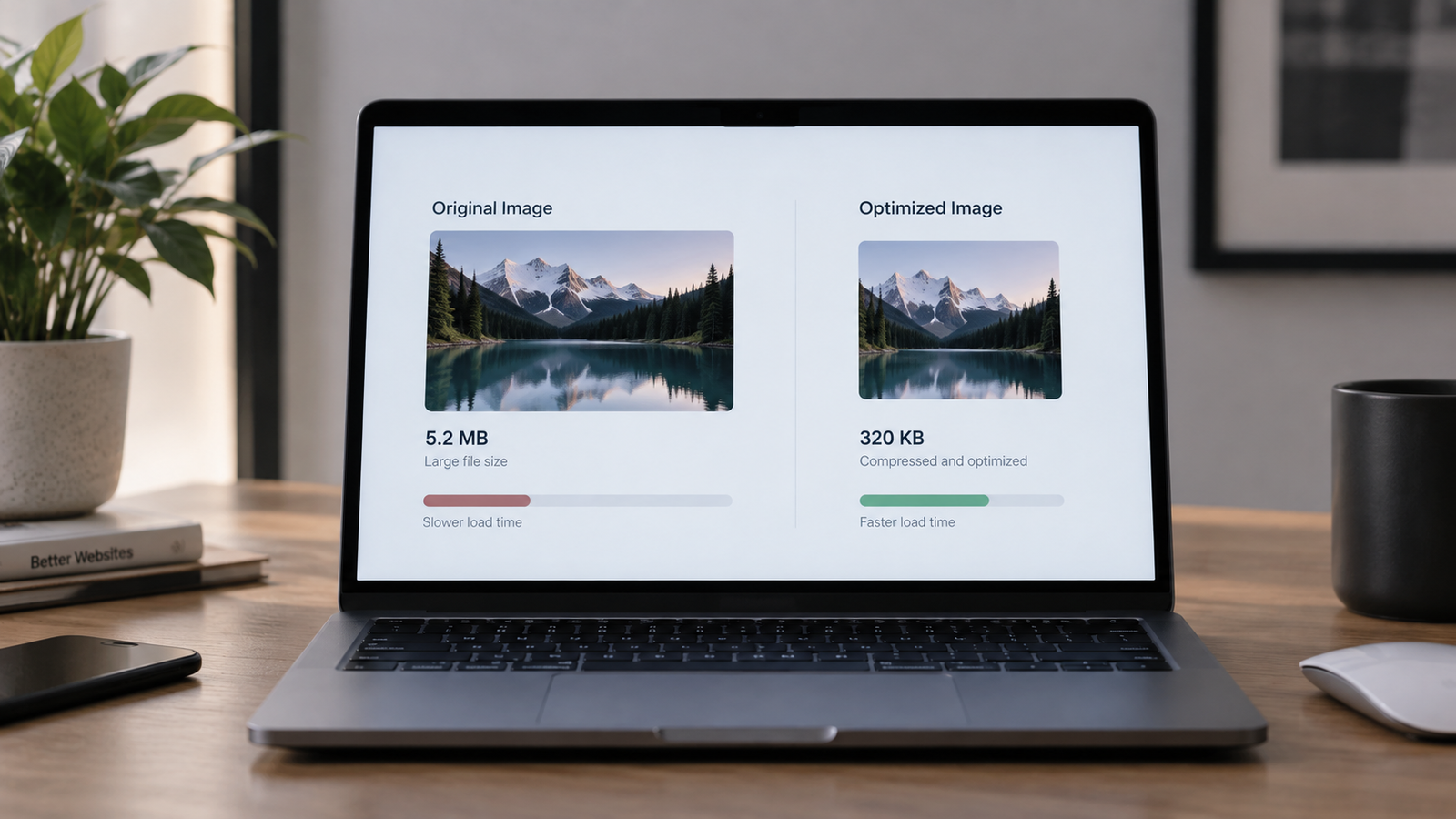
I resize oversized uploads, compress them, use responsive images and prefer efficient formats such as WebP or AVIF when appropriate.
I also make sure images have defined dimensions because missing dimensions can contribute to layout shifts.
WordPress 7.1 has also improved media handling with browser-side image compression, resizing and thumbnail generation, plus broader support for modern image formats including AVIF.
Do not lazy-load the main hero image
Lazy loading is useful for images further down the page.
But blindly lazy-loading everything can delay the image responsible for Largest Contentful Paint.
For an important LCP image, I want the browser to discover it early. In the right situation, fetchpriority=”high” can also help tell the browser that the resource is important.
Reduce unnecessary JavaScript
This has become increasingly important because responsiveness is measured through Interaction to Next Paint, or INP.
Heavy scripts, page builders, tracking tools, chat widgets, popups and third-party integrations can all keep the browser’s main thread busy.
Google’s current “good” Core Web Vitals targets are:
LCP: 2.5 seconds or less
INP: 200 milliseconds or less
CLS: 0.1 or less
Reducing unnecessary JavaScript and long main-thread tasks is particularly important for INP.
Optimize fonts
Custom fonts can quietly add a lot of unnecessary requests.
I normally reduce unused font weights, avoid loading fonts that never appear on the website and preload only genuinely critical fonts.
If five different font weights are installed but the website uses two, there is usually no reason to load all five.
Use a CDN when it actually helps
A CDN can reduce the physical distance between website assets and visitors.
That becomes especially useful when a website receives traffic from different countries. CDNs can also help deliver images, CSS, JavaScript and other static resources faster.
Clean up the database and background processes
Over time, WordPress websites can collect revisions, expired transients, unused data and plugin tables.
I also check scheduled tasks and background processes because some websites constantly run unnecessary operations without the owner knowing about them.
Database cleanup should always be done carefully and with a backup.
Test everything again
Optimization without retesting is guessing.
After making changes, I test the same pages again and check mobile performance especially carefully.
I also test the actual website manually. A better Lighthouse score means nothing if a menu, animation, checkout or form stopped working.
One New WordPress Performance Feature Worth Knowing
Speculative loading has been part of WordPress Core since WordPress 6.8.
It allows supported browsers to begin preparing pages before the visitor fully navigates to them, helping subsequent page transitions feel faster. WordPress has continued expanding how this can be configured, including additional controls introduced with WordPress 7.1.
It is useful technology, but I would still fix the fundamentals first.
A slow server, oversized images and excessive JavaScript will not magically disappear because speculative loading exists.
The Mistakes I Try to Avoid
The biggest mistake is optimizing for the PageSpeed score instead of the website.
I also avoid aggressively delaying every script, lazy-loading everything, installing several optimization plugins together or making major performance changes without checking functionality afterwards.
A 100/100 score is nice.
A website that loads quickly, responds instantly and works correctly for real visitors is much more important.
Final Thoughts
My approach to WordPress speed optimization is simple:
Find the bottleneck first. Fix the biggest problems. Measure again. Then keep improving.
There is no universal combination of plugins or settings that works perfectly for every WordPress website.
The best optimization comes from understanding the website, its users and what the browser is actually being asked to load.
And that is usually where the biggest improvements begin.
Frequently Asked Questions
Does WordPress website speed affect SEO?
Core Web Vitals are used by Google’s ranking systems, but Google makes it clear that speed alone does not guarantee higher rankings. Content quality, relevance and the overall page experience still matter.
What is a good PageSpeed Insights score?
I would not optimize around one score alone. I pay more attention to the underlying problems, Core Web Vitals and real-world performance.
Can a plugin completely optimize WordPress speed?
A good optimization plugin can help with caching and frontend optimization, but it cannot fix every hosting, theme, plugin, database, JavaScript or architectural problem.