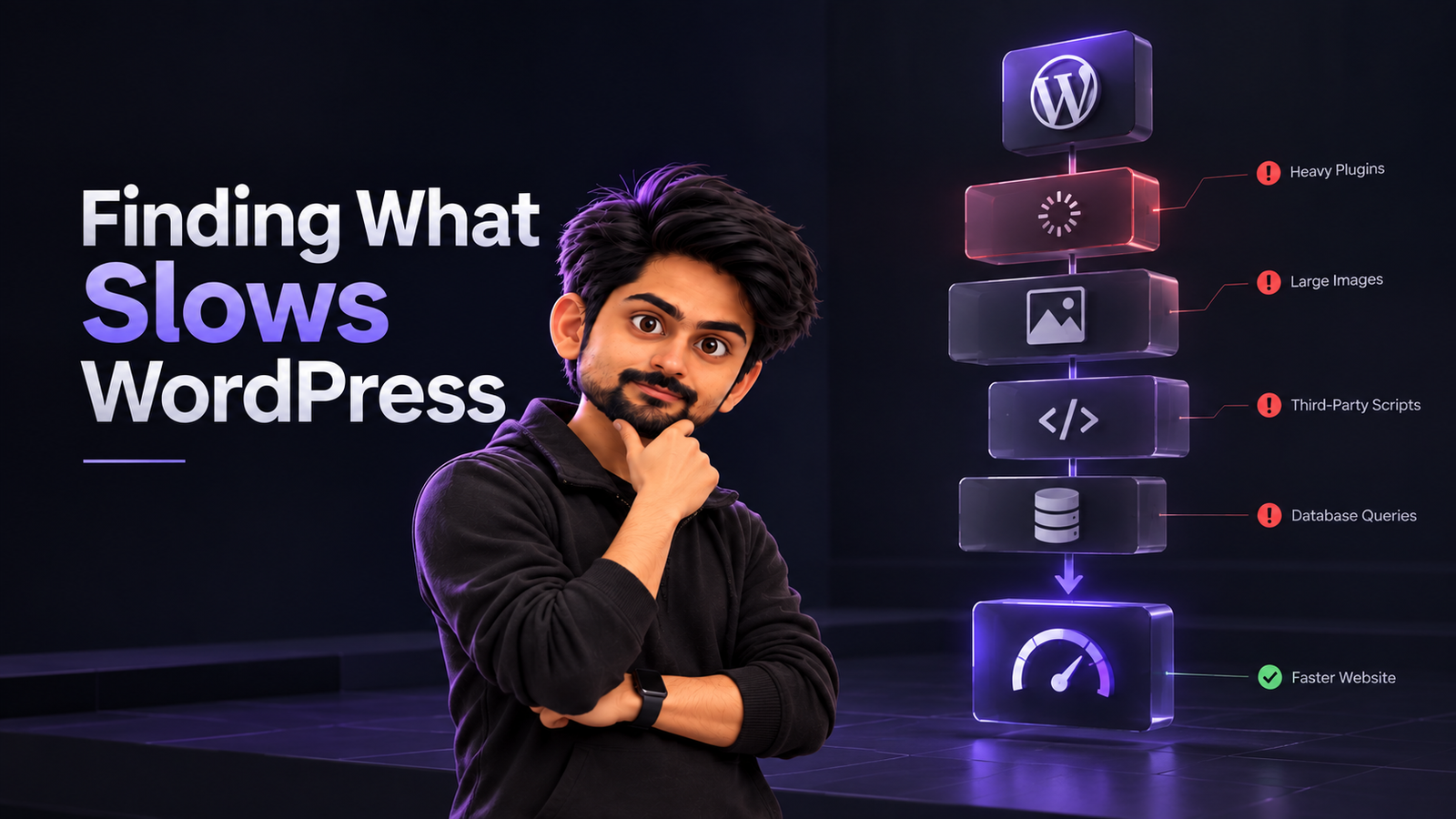
A slow WordPress website rarely has one single cause.
Sometimes it is the server. Sometimes it is a plugin, a database query, an oversized image, a page builder, a third-party script, or a combination of several smaller problems.
That is why I do not start by installing another speed plugin and hoping the score improves.
My approach to WordPress & Website Development is simple: first find where the delay is coming from, then fix the actual bottleneck.
Here is the process I normally follow.
I Never Start by Installing Another Speed Plugin
When someone tells me a WordPress website is slow, the first thing I want to know is what “slow” actually means.
Is the entire website slow? Only one page? The WordPress admin? Mobile only? Logged-in users only? Did it start after an update?
Those questions immediately narrow the problem.
A website with a slow server response needs a different fix from one that loads quickly but becomes unresponsive because of heavy JavaScript.
Step 1: I Reproduce the Problem
Before changing anything, I try to experience the issue myself.
I test important pages logged in and logged out, on desktop and mobile. If the website serves multiple countries, I also consider whether location changes the result.
I also check when the slowdown started. A recent plugin update, theme change, tracking script, new page section, or hosting change can give me a useful starting point.
The goal is not to optimize yet. It is to understand the pattern.
Step 2: I Measure Before Touching Anything
Next, I create a baseline.
I usually use PageSpeed Insights and Chrome DevTools to understand loading, interactivity, layout shifts, network requests, and server response instead of focusing only on one overall score.
Google’s current Core Web Vitals are LCP, INP, and CLS. The recommended good thresholds are LCP within 2.5 seconds, INP of 200 milliseconds or less, and CLS of 0.1 or less, measured at the 75th percentile of visits.
Without a baseline, I cannot tell whether a change actually improved the website.
Step 3: I Check the Server Response First
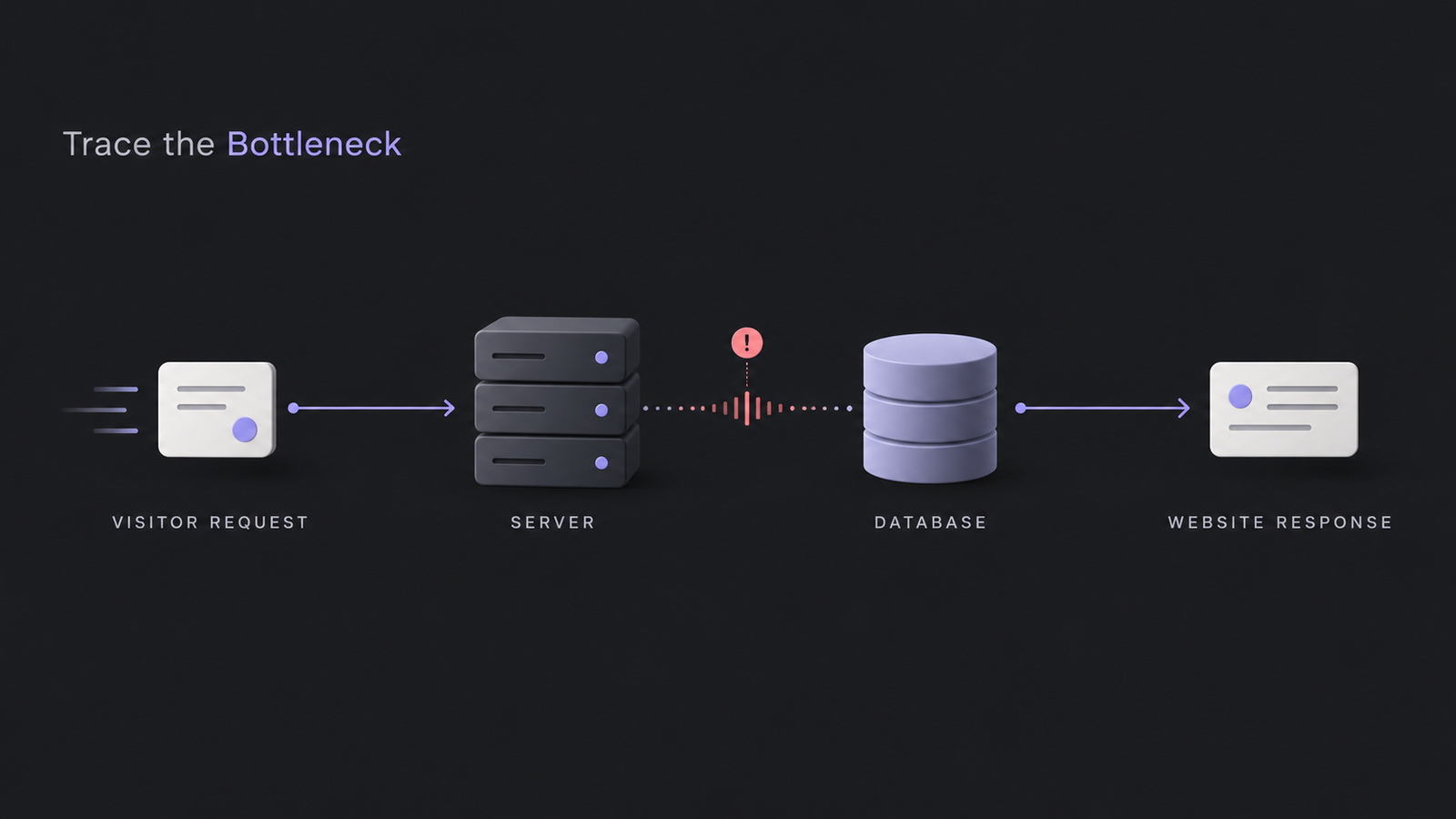
If the browser spends too much time waiting before the page starts arriving, I look at the backend before touching images or CSS.
I check hosting resources, PHP configuration, server-level caching, database response, CDN setup, traffic spikes, and slow PHP or external requests.
A slow backend can make a well-optimized front end feel slow. WordPress also recommends performance profiling when deeper investigation is needed, particularly for slow queries, transactions, and external requests.
This is why I treat performance as part of WordPress & Website Development, not as a separate “speed plugin” task.
Step 4: I Check WordPress Site Health and Updates
I then look inside WordPress.
Tools > Site Health gives useful information about the server, PHP, database, plugins, themes, caching, and configuration. WordPress uses Site Health to surface critical issues and recommended improvements that can affect performance and stability.
I also check whether WordPress core, the active theme, and plugins are current. Important updates should be tested on staging before they reach a live site.
At the time of writing in October 2026, WordPress 7.1.2 is the latest release.
Step 5: I Isolate Plugin and Theme Bottlenecks
The number of plugins alone does not tell me whether a website is slow.
One badly optimized plugin can create more work than several lightweight ones.
When plugins look suspicious, I test them systematically on staging. I disable or replace them one at a time and compare the results. I pay particular attention to plugins that run complex queries, load scripts everywhere, call external APIs, or add heavy front-end features.
WordPress itself recommends selectively disabling plugins when investigating performance problems.
I use the same approach with the theme and page builder.
The goal is to isolate the cause instead of randomly deleting things.
Step 6: I Check the Database and PHP Work
Some websites look fine on the front end but are doing far too much work behind the scenes.
I check for slow queries, bloated autoloaded options, unnecessary transient data, scheduled jobs, and plugins repeatedly hitting the database.
For deeper troubleshooting, WordPress provides debugging options such as SAVEQUERIES, while profiling tools can reveal slow functions, database queries, and external HTTP requests. I use these temporarily because WordPress notes that query logging itself can affect performance.
This is often where difficult WordPress & Website Development performance problems become much clearer.
Step 7: I Audit Images, Fonts, CSS and JavaScript
Once the backend looks healthy, I move to the browser.
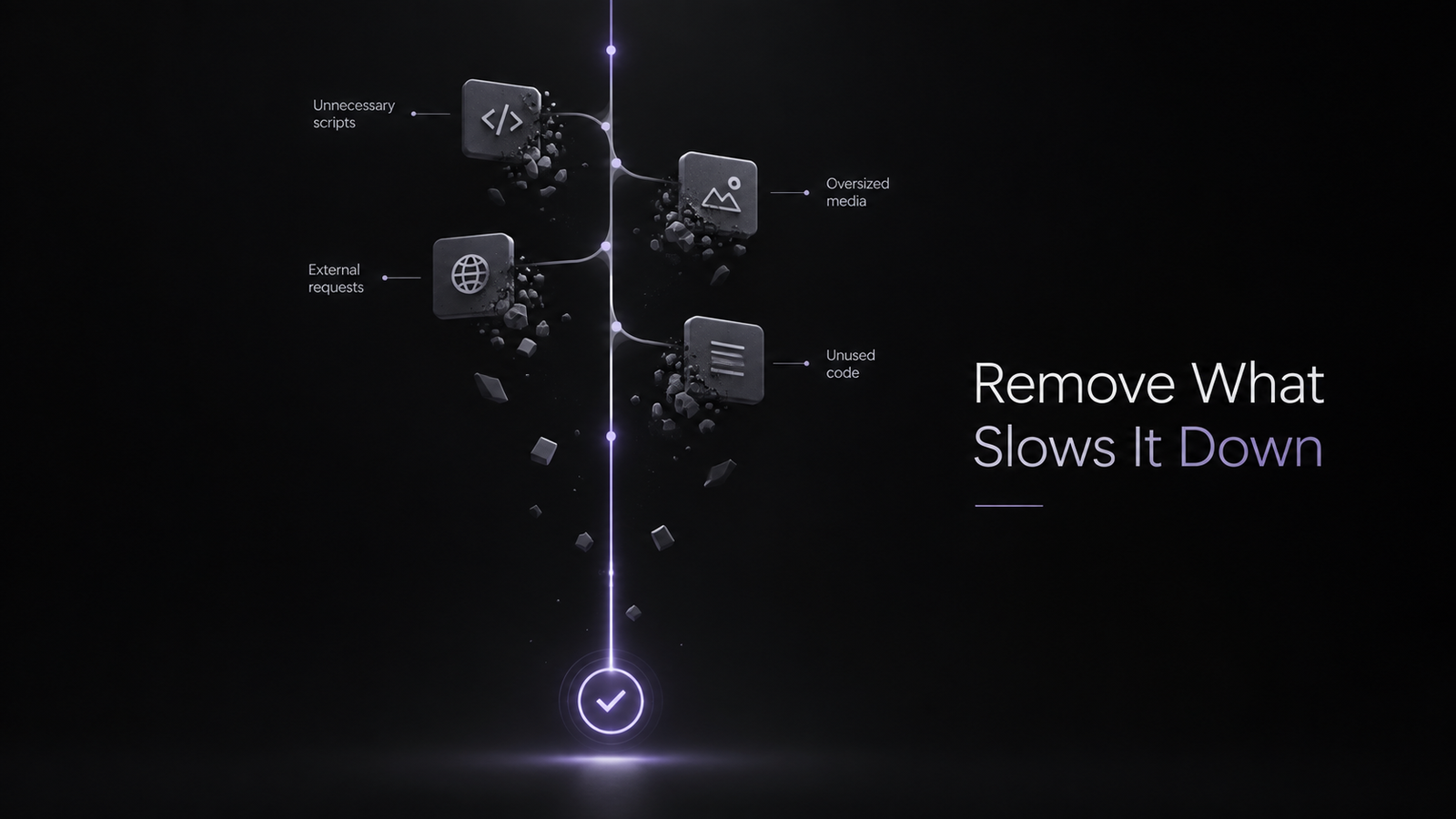
I check whether images are larger than necessary, whether modern formats make sense, whether the main visual is loading efficiently, and whether off-screen media is delayed correctly.
Then I inspect fonts, CSS, and JavaScript for render-blocking resources, unused code, duplicate libraries, oversized bundles, and scripts loading on pages where they are not needed.
I pay extra attention to the largest above-the-fold element because it can directly affect LCP.
Step 8: I Check Third-Party Scripts
Analytics, chat widgets, ad pixels, heatmaps, embedded videos, review tools, and social widgets can all add network requests and JavaScript work.
I do not remove useful tools just to chase a perfect score.
Instead, I ask whether each script needs to load immediately and whether it needs to appear on every page.
Google specifically advises site owners not to treat a perfect performance score as the goal. Core Web Vitals matter, but they are only part of the broader page experience picture.
Step 9: I Apply Caching and Delivery Improvements
Only after I understand the problem do I optimize delivery.
Depending on the website, that can include page caching, browser caching, persistent object caching, a CDN, compression, and better asset delivery.
WordPress describes caching as one of the fastest ways to improve performance because it reduces repeated processing for page requests.
Newer WordPress releases are also bringing more performance work into the platform. WordPress 7.1 introduced browser-based media processing improvements and expanded control around speculative loading.
I see these as useful additions, but not replacements for proper troubleshooting.
Step 10: I Retest Everything
After every meaningful change, I test again.
I compare the new results with the original baseline, but I also browse the website normally.
I test menus, forms, checkout flows, search, popups, logged-in areas, and anything else that depends on JavaScript or dynamic content.
A faster website is not an improvement if an important feature stops working.
My Rule for WordPress Performance
The biggest mistake I see is trying to optimize everything at once.
My process is simple:
- Find the slow part.
- Measure it.
- Identify the bottleneck.
- Change one thing.
- Test again.
- Keep the change only if it actually helps.
For me, good WordPress & Website Development is not about getting a perfect score from one testing tool.
It is about building a website that stays fast, stable, maintainable, and reliable for the people actually using it.
FAQ
Why does a WordPress website suddenly become slow?
Common causes include plugin or theme changes, traffic increases, hosting limits, slow database queries, large media files, third-party scripts, caching problems, or slow external services. I normally start by checking what changed around the time the slowdown began.
How do I find which WordPress plugin is slowing down my website?
I test plugins one at a time in staging and compare server response, queries, requests, and front-end performance. Profiling and debugging tools can help with harder cases.
Does having too many WordPress plugins make a website slow?
Not automatically. The work each plugin performs matters more than the raw plugin count. One poorly optimized plugin can create a bigger bottleneck than several lightweight plugins.
Can caching fix every slow WordPress website?
No. Caching can help significantly, but it cannot fix every underlying problem. Slow queries, overloaded hosting, heavy JavaScript, or third-party requests may still need direct attention.
Does WordPress website speed affect SEO?
Google says Core Web Vitals are used by its ranking systems, but they are only one part of overall page experience and search ranking. A perfect speed score does not guarantee higher rankings.
How often should I test WordPress performance?
I retest after meaningful plugin, theme, tracking, design, hosting, or infrastructure changes. For important business websites, ongoing monitoring is better than waiting until users report a problem.