A WordPress website can look perfectly fine on the outside while having serious security problems behind the scenes.
Outdated plugins, weak passwords, unnecessary administrator accounts, and missing backups can put an entire website at risk. And the problem is that most website owners don’t notice these things until something goes wrong.
After working with WordPress websites for more than 10 years, I’ve come to see security as an important part of website development and maintenance, not something to think about after launching.
The good news is that securing a WordPress website doesn’t always require complicated technical work or expensive security tools.
In this guide, I’ll walk through the WordPress security basics I consider important when setting up and maintaining client websites.
Why WordPress Security Matters More Than You Think
WordPress powers everything from personal blogs to large business websites. Its flexibility is one of its biggest advantages, but it also means websites often depend on multiple plugins, themes, and third-party integrations.
Every additional component needs to be maintained properly.
A security issue can lead to more than just a broken website. It can expose customer information, redirect visitors to suspicious pages, inject spam content, or affect search visibility.
For a business, these problems can damage customer trust and interrupt everyday operations.
That’s why I prefer treating website security as an ongoing process rather than a one-time setup.
1. Keep WordPress Core, Plugins, and Themes Updated
One of the most important WordPress security basics is keeping everything updated.
WordPress core, plugins, and themes receive updates for different reasons, including security fixes, compatibility improvements, and bug fixes.
Running outdated software can leave known vulnerabilities available for attackers to exploit.
My recommended approach is simple:
- Keep WordPress core updated to a supported version.
- Review plugin and theme updates regularly.
- Remove unused plugins and themes.
- Check compatibility before major updates.
- Test important functionality after updating.
For websites with complex features, I prefer testing significant updates in a staging environment before applying them to the live website.
Automatic updates can be useful, especially for security releases, but they should be combined with reliable backups and monitoring.
2. Secure WordPress Login and Administrator Access
Your WordPress login page is one of the most important areas to protect.
Weak passwords, shared accounts, and unnecessary administrator access can create serious security risks.
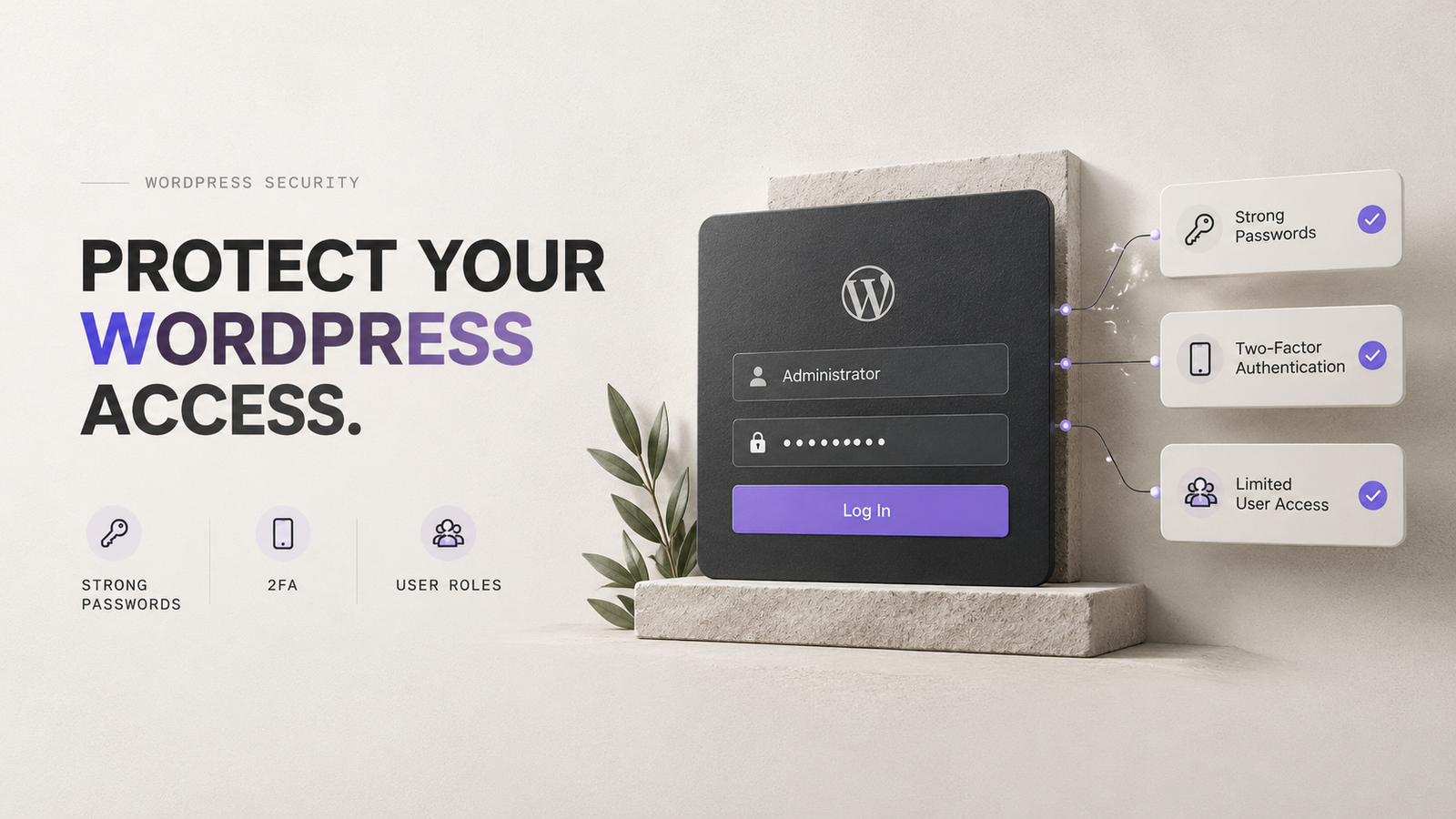
I recommend using unique passwords, a password manager, and two-factor authentication (2FA) for administrator accounts.
Two-factor authentication adds another verification step, making it harder for someone to access an account using only a stolen password.
I also recommend reviewing user roles regularly.
Not everyone working on a website needs administrator access. Content editors, writers, and other team members should receive only the permissions required for their work.
This follows a simple security principle: give people the access they need, not more.
3. Choose Secure WordPress Hosting
Website security doesn’t begin inside the WordPress dashboard.
Your hosting environment plays an important role in protecting the website.
A good hosting provider should offer updated server software, secure account access, SSL support, backup options, and protection against common attacks.
When evaluating hosting, I look for features such as:
- Supported PHP versions and regular security updates.
- Server-level firewall and malware protection.
- Reliable backup and restoration options.
- Secure file access through SFTP or SSH.
- Clear technical support and incident response.
Cheap hosting isn’t automatically insecure, and expensive hosting doesn’t guarantee protection.
What matters is how well the hosting environment is maintained and secured.
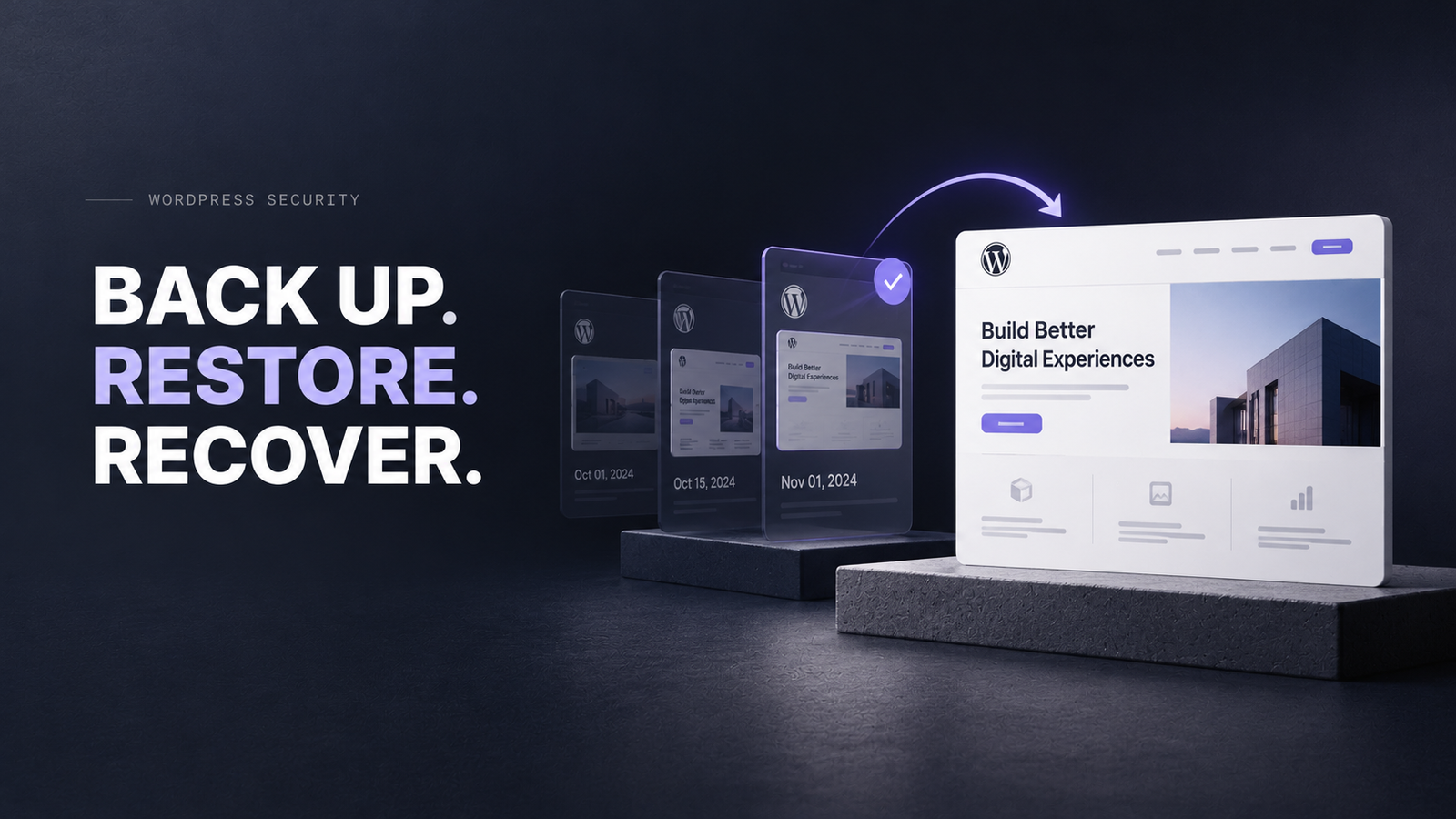
4. Set Up Automatic Backups and Test Recovery
Backups are one of the most overlooked parts of WordPress website security.
Even with strong security measures, something can still go wrong. A plugin update might break the website, a server could fail, or malicious activity could damage important files.
That’s why I consider backups essential.
A practical backup strategy should include the WordPress database, website files, uploads, themes, plugins, and relevant configuration files.
I recommend storing at least one backup separately from the hosting server.
For frequently updated websites, daily backups may be appropriate. For busy e-commerce websites, more frequent backups might be necessary.
But creating backups is only half the work.
A backup is useful only if you can successfully restore it.
Testing the restoration process helps confirm that the website can actually be recovered when needed.
5. Install a Reliable WordPress Security Plugin
A WordPress security plugin can add useful protection, but installing multiple security plugins isn’t necessarily better.
Depending on the hosting environment, tools such as Wordfence or Solid Security can provide features including login protection, security alerts, and vulnerability monitoring.
Before installing one, I recommend checking what protection the hosting provider already includes.
Running overlapping firewalls or security features can sometimes create unnecessary complexity.
My preference is to use a security solution that provides meaningful protection without affecting website performance or creating constant false alarms.
A security plugin should support your overall security setup, not replace regular maintenance.
6. Protect Website Traffic With HTTPS
HTTPS encrypts information transmitted between a visitor’s browser and your website.
This is especially important for login pages, contact forms, checkout pages, and other areas where information is submitted.
Most modern hosting providers offer SSL/TLS certificates, often at no additional cost.
However, installing a certificate isn’t the only step.
I recommend checking that:
- HTTP requests redirect to HTTPS.
- The certificate remains valid and renews correctly.
- Internal resources load securely.
- The website doesn’t contain mixed-content warnings.
HTTPS is an essential security measure, but it doesn’t protect a website from vulnerable plugins or compromised administrator accounts.
7. Remove Unnecessary Plugins and Review File Permissions
Over time, WordPress websites can accumulate plugins that are no longer needed.
Some may have been installed for testing, while others might have been replaced by newer solutions.
Every unnecessary plugin adds maintenance work and potentially increases the website’s attack surface.
I recommend reviewing installed plugins periodically and removing anything that isn’t required.
It’s also important to check file permissions.
As a general starting point, WordPress commonly recommends directory permissions of 755 and file permissions of 644, although secure settings depend on the hosting configuration.
Sensitive files such as wp-config.php may need stricter protection.
Avoid making files or directories writable by everyone simply to fix permission errors.
8. Monitor Website Security Regularly
Security doesn’t stop once everything is configured.
Websites change constantly. New plugins are installed, users receive access, software gets updated, and vulnerabilities are discovered.
Regular monitoring helps identify problems before they become more serious.
I recommend checking for failed login attempts, unexpected administrator accounts, suspicious file changes, outdated software, and malware warnings.
Tools such as Google Search Console can also help identify certain security issues affecting a website’s presence in Google Search.
However, Search Console isn’t a replacement for proper malware scanning or server monitoring.
The goal is to identify unusual activity early and investigate it properly.
My Practical WordPress Security Checklist
For anyone managing a WordPress website, here’s a simple checklist worth following.
-
Update WordPress core, plugins, and themes.
-
Remove unused plugins and themes.
-
Enable two-factor authentication.
-
Use strong, unique passwords.
-
Review administrator accounts and user permissions.
-
Confirm HTTPS works correctly.
-
Configure automatic off-site backups.
-
Test backup restoration.
-
Enable appropriate firewall and login protection.
-
Review hosting security and PHP updates.
-
Check file permissions and sensitive files.
-
Monitor security alerts and suspicious activity.
You don’t necessarily need to complete every task manually each day.
The important thing is to establish a reliable process and make sure someone is responsible for maintaining it.
Common WordPress Security Mistakes to Avoid
One mistake I often see in website management is treating security as something a single plugin can solve.
A security plugin might detect suspicious activity, but it cannot compensate for every outdated extension, weak password, or poorly configured server.
Another mistake is assuming backups are working without ever testing them.
I also recommend avoiding plugins or themes downloaded from untrusted sources, particularly modified premium software distributed for free.
These can contain malicious code or create unnecessary security risks.
Most importantly, don’t wait for a security incident before establishing a maintenance routine.
Frequently Asked Questions About WordPress Security
1. Is WordPress secure for business websites?
Yes. WordPress can be a secure platform for business websites when it is properly configured, regularly updated, and maintained. Security also depends on hosting, plugins, user access, and ongoing monitoring.
2. What are the most important WordPress security basics?
The essentials include software updates, strong passwords, two-factor authentication, secure hosting, HTTPS, regular backups, limited user permissions, and security monitoring.
3. Do I need a WordPress security plugin?
Not always. Some managed hosting providers include extensive security protection. A security plugin can still be useful for additional monitoring, login protection, or firewall features.
4. How often should I back up my WordPress website?
It depends on how frequently the website changes. Daily backups are a reasonable starting point for many business websites, while frequently updated or transactional websites may need more frequent backups.
5. Can WordPress websites get hacked even with security plugins?
Yes. No security plugin guarantees complete protection. Vulnerable software, compromised credentials, insecure hosting, and configuration mistakes can still create security risks.
6. Does WordPress security affect SEO?
It can. Hacked websites may contain spam pages, malicious redirects, or harmful content. Google may display security warnings or take action against compromised pages, affecting visibility and visitor trust.
Final Thoughts
WordPress security doesn’t have to be complicated, but it does need consistency.
Keeping software updated, protecting administrator access, maintaining reliable backups, and monitoring the website regularly can prevent many avoidable problems.
After years of working with business websites, I believe the best approach is to build security into the website maintenance process from the beginning.
Because maintaining a website isn’t only about keeping it fast, functional, and visually appealing.
It’s also about keeping the business behind it protected.